Archive

Archive for the ‘STELLA & iThink’ Category

Modeling Bass Diffusion with Rivalry

February 18th, 2010

Karim Chichakly STELLA & iThink

This is the last of a three-part series on the Limits to Growth Archetype.  The first part can be accessed here and the second part here.

Last time, we explored the effects of Type 1 rivalry (rivalry between different companies in a developing market) on the Bass diffusion model by replicating the model structure.  This part will generalize this structure and add Type 2 rivalry (customers switching between brands).

Bass Diffusion with Type 1 Rivalry

To model the general case of an emerging market with multiple competitors, we can return to the original single company case and use arrays to add additional companies.  In this case, everything except Potential Customers needs to be arrayed, as shown below (and available by clicking here).

image

For this example, three companies will be competing for the pool of Potential Customers.  Each array has one-dimension, named Company, and that dimension has three elements, named A, B, and C, one for each company.  Although each different parameter, wom multiplier, fraction gained per $K, and marketing spend in $K, can be separately specified for each company, all three companies use the same values initially.  All three companies, however, do not enter the market at the same time.  Company A enters the market at the start of the simulation, company B enters six months later, and company C enters six months after that.

Recall that the marketing spend is the trigger for a company to start gaining customers.  Thus, the staggered market entrance can be modeled with the following equation for marketing spend in $K:

STEP(10, STARTTIME + (ARRAYIDX() – 1)*6)

The STEP function is used to start the marketing spend for each company at the desired time.  The ARRAYIDX function returns the integer index of the array element, so it will be 1 for company A, 2 for company B, and 3 for company C.  Thus, the offsets from the start of the simulation for the launch of each company’s marketing campaign are 0, 6, and 12, respectively.

This leads to the following behavior:

image

Note that under these circumstances, the first company to enter the market retains a leadership position.  However, companies B and C could anticipate this and market more strongly.  What if company B spent 50% more and company C spent 100% more than company A on marketing that is similarly effective?  This could be modeling by once again changing the equation for marketing spend in $K, this time to:

STEP(10 + (ARRAYIDX() – 1)*5, STARTTIME + (ARRAYIDX() – 1)*6)

Read more…

, , , ,

Developing a Market Using the Bass Diffusion Model

January 21st, 2010

Karim Chichakly STELLA & iThink

This is part two of a three part series on Limits to Growth.  Part one can be accessed here and part three can be accessed here.

In part one of this series, I explained the Limits to Growth archetype and gave examples in epidemiology and ecology. This part introduces the Bass diffusion model, an effective way to implement the capture of customers in a developing market. This is also used to implement what Kim Warren calls Type 1 rivalry in his book Strategy Management Dynamics, that is, rivalry between multiple companies in an emerging market.

The Bass Diffusion Model

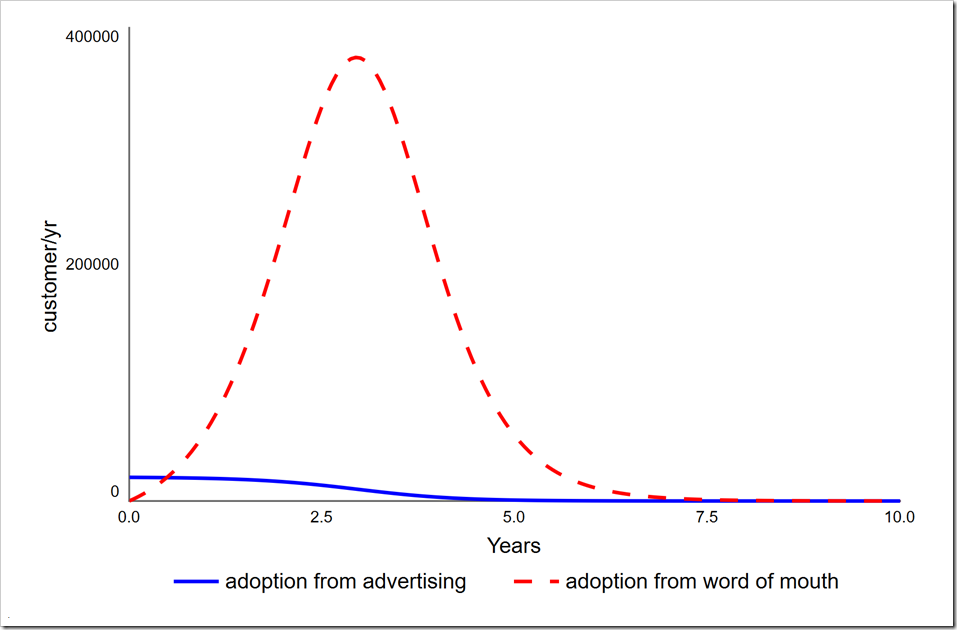
The Bass diffusion model is very similar to the SIR model shown in part one. Since we do not usually track customers who have “recovered” from using our product, the model only has two stocks, corresponding loosely to the Susceptible and Infected stocks. New customers are acquired through contact with existing customers, just as an infection spreads, but in this context this is called word of mouth (wom). This is, however, not sufficient to spread the news of a good product, so the Bass diffusion model also includes a constant rate of customer acquisition through advertising. This is shown below (and can be downloaded by clicking here).

image

The feedback loops B1 and R are the same as the balancing and reinforcing loops between Susceptible and Infected in the SIR model. Instead of an infection rate, there is a wom multiplier which is the product of the Bass diffusion model’s contact rate and the adoption rate. If you are examining policies related to these variables, it would be important to separate them out in the model.

The additional feedback loop, B2, starts the ball rolling and helps a steady stream of customers come in the door. If you examine the SIR model closely, you will see that the initial value of Infected is one. If no one is infected, the disease cannot spread. Likewise, if no one is a customer, there is no one to tell others how great the product is so they want to become customers also. By advertising, awareness of the product is created in the market and some people will become customers without having encountered other customers who are happy with the product.

The behavior of this model is shown below. Note it is not different in character from the SIR model or the simple population model.

image Read more…

, , ,

Limits to Growth

December 3rd, 2009

Karim Chichakly STELLA & iThink

This is the first of a three-part series on the Limits to Growth Archetype.  The second part can be accessed here and the third part here.

The Limits to Growth Systems Archetype, also known as Limits to Success, combines growth with an exogenous or endogenous limit.  This Systems Archetype was formally identified in Appendix 2 of The Fifth Discipline by Peter Senge (1990), but made its first prominent appearance in World Dynamics by Jay Forrester (1971) and then The Limits to Growth by Meadows, Meadows, Randers, and Behrens (1972).  The Causal Loop Diagram (CLD) is shown below.

image

Real growth processes have inherent limits to growth.  Identifying these limits can help avoid problems in the future, whether the problem is overpopulation, increasing demand for a product that cannot be met, or growing a business in a mature market.  When growth is desired, but limited, it is always better to find ways to increase the limit before pushing for more growth.  Excessive growth in the face of a limit often leads to collapse.  Driving the system to the point of collapse can erode the ability to continue after the collapse, for example, by reducing the production capability of a piece of farmland or destroying the reputation of a company.

Classic examples of limits to growth include:

  • The collapse of the deer population on the Kaibab plateau and on St. Matthew Island due to overpopulation and the attendant overgrazing of their habitat
  • The overshoot and collapse of the human population on Easter Island
  • Overgrazing in the Sahel region of Africa by cattle herders
  • Overfishing of the oceans by fishermen
  • The collapse of People Express due to sharp customer growth combined with slow personnel growth
  • The sharp exodus of America Online subscribers after an intense marketing campaign increased the number of subscribers far beyond their capacity
  • The contraction of the world economy in 2008 due to limiting oil supplies
  • The productivity of staff deteriorating as a company grows, due to increased interactions and reporting overhead
  • Business growth limited by the size of the potential market
  • Yeast cells in the fermentation process, who suffer from both the loss of exogenously supplied sugar and the increase of endogenously produced pollution

Read more…

, , , ,

Modeling H1N1 Flu Outbreak

November 13th, 2009

Jeremy Merritt STELLA & iThink

H1N1 Virus It seems like everyone has been talking about H1N1 (swine flu) the last couple of months.  If you have children in school, then you are probably very aware of how fast the virus is spreading.  Schools are the perfect environment for a virus to spread.  To help understand why, we created a STELLA model of a high school that introduces the H1N1 virus.  You can experiment with vaccination and “stay at home” policies to limit the spread of the flu.

The STELLA model is based on the SEIR compartmental model that epidemiologists use to model the progress of an epidemic.  SEIR models divide the population into compartments: Susceptible, Exposed, Infected and Recovered.  These ‘compartments’ translate nicely into stocks within the STELLA model where we can observe the dynamics of the spreading virus.

While developing the model we decided to explore some strategies that schools are pursuing to limit the virus’ spread.  We wanted to know if the “stay at home” (when you are sick) policy would be effective in the case where vaccines are not available quickly enough, (which as of November 2009 is the case).

Take a look:

Click the ‘Simulate’ link on the home screen above and try some different scenarios.  Be sure to click the ‘How does this simulation work?’ link for a guided tour of the model behind the simulation.

As you experiment with the simulation, consider the following:

  • How does varying “% vaccinated” effect the number of sick students?
  • How many days do infected students need to stay home to have a significant impact on the spread of the virus within the school?
  • What impact does the “% effectiveness of vaccine” have on the flu outbreak?
  • What combination of decisions results in the lowest number of sick students?  Are these decisions realistic in a real-world setting?

Note: Each time you dial in parameters and press run, a new plot will be added to the graph so you can compare the effectiveness of the different decisions.  Clicking on the blue reset button will clear the graph and reset all Knobs to their default value.

If you think this simple model is useful, feel free to share it or embed it on your own website; just click the sharing icon in the lower right corner.  If you want to dig deeper into the STELLA model you can download the model by clicking here.  You can open the model with STELLA 9.1, or the free isee Player.

, , , , , ,

Success to the Successful

July 15th, 2009

Joanne Egner STELLA & iThink

fifth_disciplineMy first introduction to the Systems Archetypes was years ago when I read Peter Senge’s book, The Fifth Discipline.  I remember relating these classic Systems Thinking stories to my own experience in business and thinking how useful it was to understand some of the problems we faced and why solutions didn’t always work out as intended.

What I’ve come to appreciate since then is how the characteristic themes of the Systems Archetypes transform across all sorts of different fields and situations — even our personal lives!

Take, for example, the basic story line of the “Success to the Successful” archetype:

When given the choice, we invest our resources where we expect them to deliver the best results.  By giving more resources to one option over another, we create a self-fulfilling prophesy whereby the favored option is perpetually more successful.

The story of the Success to the Successful archetype applies to all sorts of  situations leading to well-known patterns of behavior:

Exploring the Model Structure

We recently published a model of the Success to the Successful archetype to the web using isee NetSim. Exploring the model is a great way to understand the underlying structure of the Causal Loop Diagramsystem and think about ways to avoid the problems it creates.

You’ll also get an appreciation of how the decision policy for allocating resources can determine success rather than competence.

Running the Simulation

After you’ve explored the model, try running a simulation.  The base case scenario assumes no one has an advantage over the other.  As you can imagine, everyone is equally successful and it’s a win-win situation.  Try turning on the “Advantage A Switch”  to see how even a modest advantage for A can snowball into a disadvantage for B.  It’s surprising how quickly the gap can widen.

Using Modules to Create Models

In STELLA and iThink version 9.1, we added the ability to build models by linking together modules.  The Success to the Successful model is an example of how you can use modules to create a higher level map of your model.  This map can easily be presented as a causal loop diagram.

The beauty of modules is they simplify the process of transitioning from a CLD to a model that actually simulates.  If you’ve ever tried to convert a causal loop diagram into a stock and flow model, you can appreciate what I’m talking about!  By architecting your model into modules, you’ve got a built-in mechanism for developing your model in manageable chunks and communicating the high level causal relationships.

, , ,

Version 9.1.3 Updates Key Features

June 16th, 2009

Joanne Egner STELLA & iThink

We just released another update to STELLA and iThink — Version 9.1.3.  This particular release has a number of updates specific to key features.  For example, if you’re a Macintosh user and rely on the data import/export functionality, you’ll definitely appreciate the updates we made to make sure the software is compatible with the latest versions of Excel for Mac.

Updates to the ARRAYRANK builtin include an optional parameter to specify a secondary sort field for variables with the same value.  You can now also use the ARRAYRANK builtin  in a non-arrayed variable.

My personal favorite in this release, though, is an enhancement we made to the Spatial Map utility. In addition to color configurations, you can now assign an image to a range of values.  This really expands your ability to create  interesting visual representations of spatial data.

forest and modelUsing images to visualize simulations

This simple model of trees burning in a forest illustrates how images can be used in a spatial map configuration.

The model is set up so that initially there is one tree in the middle of the forest that is burning.  All of the other trees in the forest are healthy living trees.

When you run the simulation, the images in Spatial Map allow you to see the fire spreading to adjacent trees. It really adds to the visual effect of what’s happening in the model. Eventually the burning trees die out and you’re left with a forest mostly full of dead trees — now that’s a visual!

If you want to learn more about Spatial Map, check out Karim Chichakly’s series on spatial modeling in iThink and STELLA .

A full list of the features and fixes in Version 9.1.3 is available on our web site.  If your Technical Support Contract is current, you can go ahead and download the update now from your My Software page.

Hope you have as much fun with the spatial mapping as I did!

, , ,

Insight-based Model Investigates the Housing Crisis

May 5th, 2009

Joanne Egner STELLA & iThink

wpi-logoFor the past few months I’ve been taking a distance learning course at WPI called “System Dynamics Foundations: Managing Complexity”. The course covers a broad range of topics about the system dynamics methodology and how it has been applied in the real world.

One of the things I really like about the course is the different perspective the instructors bring to the table (or in this case my computer screen.) Last week’s lecture focused on three different styles of system dynamics modeling – Causal Loop Diagrams (CLDs), insight-based models and calibrated models.  While both instructors agreed there is value in all three approaches to dynamic modeling, there was clearly a difference of opinion about what is required to actually DO something with a proposed solution to a problem.

The topic got me to thinking about the types of STELLA and iThink models that are being built and how they are being used to DO something about real world problems. I would guess that the majority of the models fall into the insight-based category.   One of the reasons we put so much effort into creating communication features in our software is so that those insights can be shared and discovered by others.  The “ah-ha” moments that come from experimenting with simulations are often a great vehicle for getting conversations going about a particular issue and discussing possible solutions.

Read more…

, , , , , ,

A Better Chained Slider

February 18th, 2009

Jeremy Merritt STELLA & iThink

Chained slider in iThink 9.1.2

Chained slider in iThink 9.1.2

The chained slider has always been a useful interface object in iThink and STELLA for allocating 100% of something to different variables within a model.  For example, you may want to build a dashboard where someone could play around with allocating funds to various programs within the Obama Administration’s economic stimulus package.

In iThink and STELLA version 9.1.2, we decided to improve the behavior of the chained slider in response to feedback we’ve received from customers.  We also wanted to nail down the behavior before we added support for it in models published to the web with isee NetSim.

Read more…

, ,