Modeling the Economic Crisis

March 8th, 2010

Joanne Egner Systems Thinking

I’m often asked by customers that are new to Systems Thinking, “How can this approach add value to conceptualizing and understanding common, everyday issues?”  The issues range from business design to environmental concerns to macroeconomic dynamics.  In response to this question, I can tell you from my personal experience, nothing beats seeing a skilled practitioner use our software tools and the Systems Thinking methodology to make sense out of a complex problem.

With this in mind, we collaborated with our consulting and training partner, Lexidyne LLC, to create a new series of video-based presentations focused on common but often misunderstood problems that can be conceptualized, expanded, and then explored using Systems Thinking.  We recently released the first video in this series — Understanding the Economic Crisis presented by Dr. Mark Paich.

Judging from its title, you might think Understanding the Economic Crisis presents a huge complex model of the macro economy.  To the contrary, dynamic modeling expert, Mark Paich, begins with a very simple model of something we all can relate to — the individual consumer.

Stock and flow map of an individual consumer's balance sheet

Mark expands upon the model and shows how a sudden drop in housing prices affects individual consumption.   As you might expect, when Total Net Worth falls, the individual responds by spending less.  When housing prices fall, home equity loans no longer provide the purchasing power for big ticket items like cars, vacation homes and big screen TVs.

The real surprise however, comes when Mark further expands the individual consumer model to include the economy as a whole.  When everyone’s net worth decreases at the same time a phenomena known as the “Paradox of Thrift” occurs. The paradox states that if everyone tries to save money during times of recession, total savings for the overall economy may fall.  The dynamics generated by adding elements of the macro economy to the model are indeed surprising.

Mark’s easily understood model leads to some real insights concerning the policy implications for an economic recovery.   It also provides a great example of how Systems Thinking can be used to deepen your understanding of a complex issue in order to make better decisions.  If you haven’t seen the video, I highly recommend it.  The following trailer highlights some of the key points in Mark’s presentation and will give you a taste of the full presentation.

(If you cannot see the video below in your RSS reader, please visit the post page)

For more information or to purchase Understanding the Economic crisis, click here.

, , , ,

Modeling Bass Diffusion with Rivalry

February 18th, 2010

Karim Chichakly STELLA & iThink

This is the last of a three-part series on the Limits to Growth Archetype.  The first part can be accessed here and the second part here.

Last time, we explored the effects of Type 1 rivalry (rivalry between different companies in a developing market) on the Bass diffusion model by replicating the model structure.  This part will generalize this structure and add Type 2 rivalry (customers switching between brands).

Bass Diffusion with Type 1 Rivalry

To model the general case of an emerging market with multiple competitors, we can return to the original single company case and use arrays to add additional companies.  In this case, everything except Potential Customers needs to be arrayed, as shown below (and available by clicking here).

image

For this example, three companies will be competing for the pool of Potential Customers.  Each array has one-dimension, named Company, and that dimension has three elements, named A, B, and C, one for each company.  Although each different parameter, wom multiplier, fraction gained per $K, and marketing spend in $K, can be separately specified for each company, all three companies use the same values initially.  All three companies, however, do not enter the market at the same time.  Company A enters the market at the start of the simulation, company B enters six months later, and company C enters six months after that.

Recall that the marketing spend is the trigger for a company to start gaining customers.  Thus, the staggered market entrance can be modeled with the following equation for marketing spend in $K:

STEP(10, STARTTIME + (ARRAYIDX() – 1)*6)

The STEP function is used to start the marketing spend for each company at the desired time.  The ARRAYIDX function returns the integer index of the array element, so it will be 1 for company A, 2 for company B, and 3 for company C.  Thus, the offsets from the start of the simulation for the launch of each company’s marketing campaign are 0, 6, and 12, respectively.

This leads to the following behavior:

image

Note that under these circumstances, the first company to enter the market retains a leadership position.  However, companies B and C could anticipate this and market more strongly.  What if company B spent 50% more and company C spent 100% more than company A on marketing that is similarly effective?  This could be modeling by once again changing the equation for marketing spend in $K, this time to:

STEP(10 + (ARRAYIDX() – 1)*5, STARTTIME + (ARRAYIDX() – 1)*6)

Read more…

, , , ,

Modeling Real World Challenges Inspires Students

February 4th, 2010

Joanne Egner Education

Last summer I had the opportunity to see students from Diana Fisher’s dynamic modeling class at Wilson High School in Portland, Oregon present their modeling projects to participants of the International System Dynamics Society Conference in Albuquerque. The parallel session was filled with educators and professionals from different fields, many of whom are renowned system dynamicists.

I think it is safe to say that we all were very impressed by the quality of the students’ work and how well they understood the dynamics associated with the issues they were presenting.  Perhaps more striking however, was seeing how empowering modeling real-world issues is for young people and the enthusiasm they share for their work.

CC Modeling SystemsNow everyone can see the effect that modeling real-world issues has on students at the CC Modeling Systems web site. Dedicated to helping educators bring dynamic modeling into the classroom, the web site features videos of students presenting their work as compelling evidence to the value of incorporating System Thinking and system dynamics into curriculum.

You’ll be amazed to see what 14-18 year olds are capable of and the excitement they exuberate when addressing challenges such as:

Students are eager to understand the world better and are more than capable of building and understanding relatively sophisticated models in their attempts to understand the dynamics of real-world systems.

—Diana Fisher

Educators and administrators considering dynamic modeling curricula typically face challenges. No matter how compelling the evidence that Systems Thinking and the system dynamics methodology engages students and takes them to a higher level of reasoning, it is still difficult to justify without tying it to National Standards.

The CC Modeling Systems web site devotes an entire section to detailing very specific 21st Century Skills and National Standards addressed by curriculum that incorporates building system dynamics models.   Much of the homework has been done aligning this type of work to standards in the following subject areas:

Many thanks to Diana Fisher for sharing her students and her experiences teaching dynamic modeling with all of us!

To learn more about the modeling course that Diana teaches, I recommend the following links:
Recorded webinar presentation by Diana Fisher
Modeling Dyamic Systems: Lessons for a First Course

, ,

Developing a Market Using the Bass Diffusion Model

January 21st, 2010

Karim Chichakly STELLA & iThink

This is part two of a three part series on Limits to Growth.  Part one can be accessed here and part three can be accessed here.

In part one of this series, I explained the Limits to Growth archetype and gave examples in epidemiology and ecology. This part introduces the Bass diffusion model, an effective way to implement the capture of customers in a developing market. This is also used to implement what Kim Warren calls Type 1 rivalry in his book Strategy Management Dynamics, that is, rivalry between multiple companies in an emerging market.

The Bass Diffusion Model

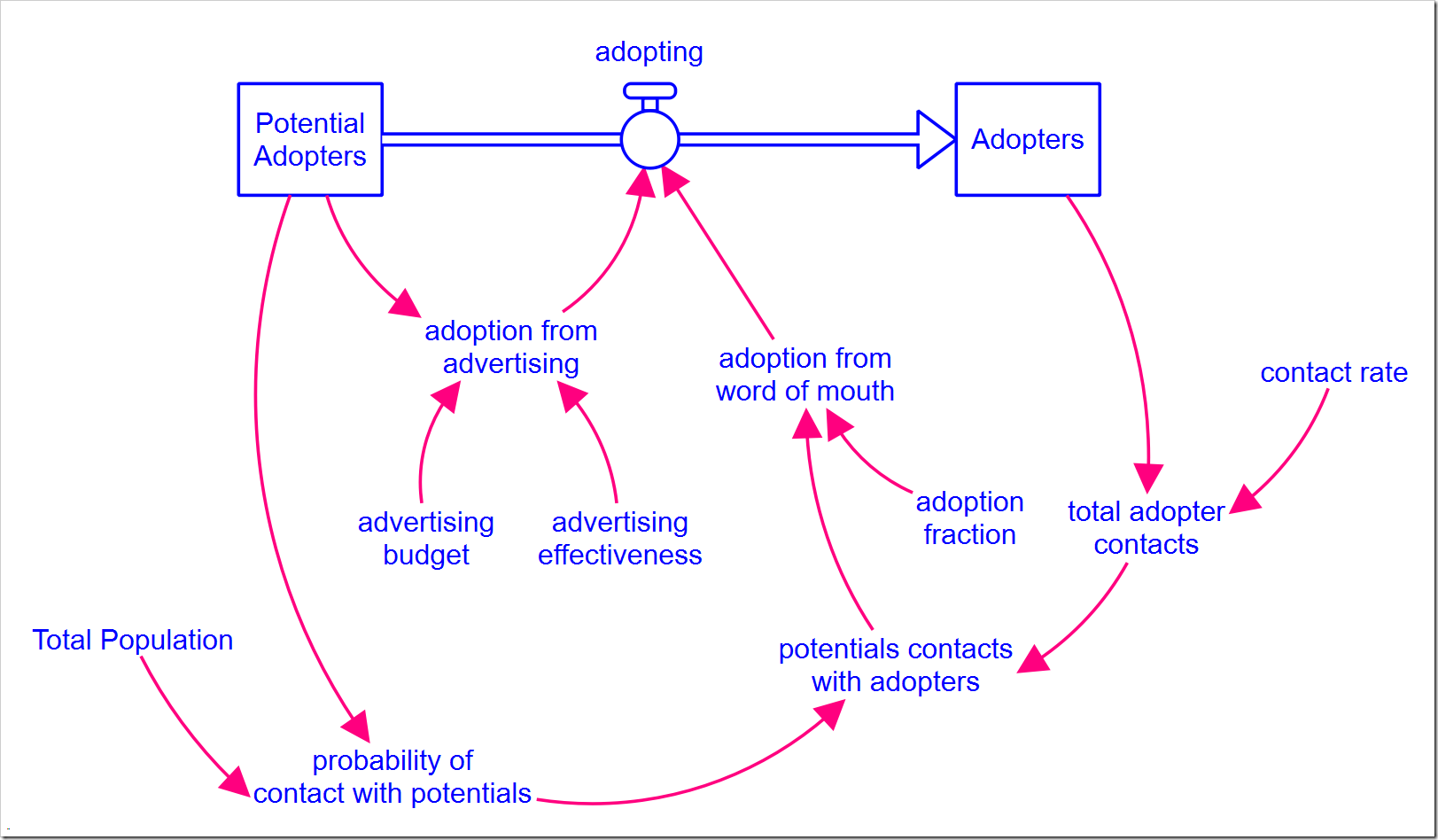
The Bass diffusion model is very similar to the SIR model shown in part one. Since we do not usually track customers who have “recovered” from using our product, the model only has two stocks, corresponding loosely to the Susceptible and Infected stocks. New customers are acquired through contact with existing customers, just as an infection spreads, but in this context this is called word of mouth (wom). This is, however, not sufficient to spread the news of a good product, so the Bass diffusion model also includes a constant rate of customer acquisition through advertising. This is shown below (and can be downloaded by clicking here).

image

The feedback loops B1 and R are the same as the balancing and reinforcing loops between Susceptible and Infected in the SIR model. Instead of an infection rate, there is a wom multiplier which is the product of the Bass diffusion model’s contact rate and the adoption rate. If you are examining policies related to these variables, it would be important to separate them out in the model.

The additional feedback loop, B2, starts the ball rolling and helps a steady stream of customers come in the door. If you examine the SIR model closely, you will see that the initial value of Infected is one. If no one is infected, the disease cannot spread. Likewise, if no one is a customer, there is no one to tell others how great the product is so they want to become customers also. By advertising, awareness of the product is created in the market and some people will become customers without having encountered other customers who are happy with the product.

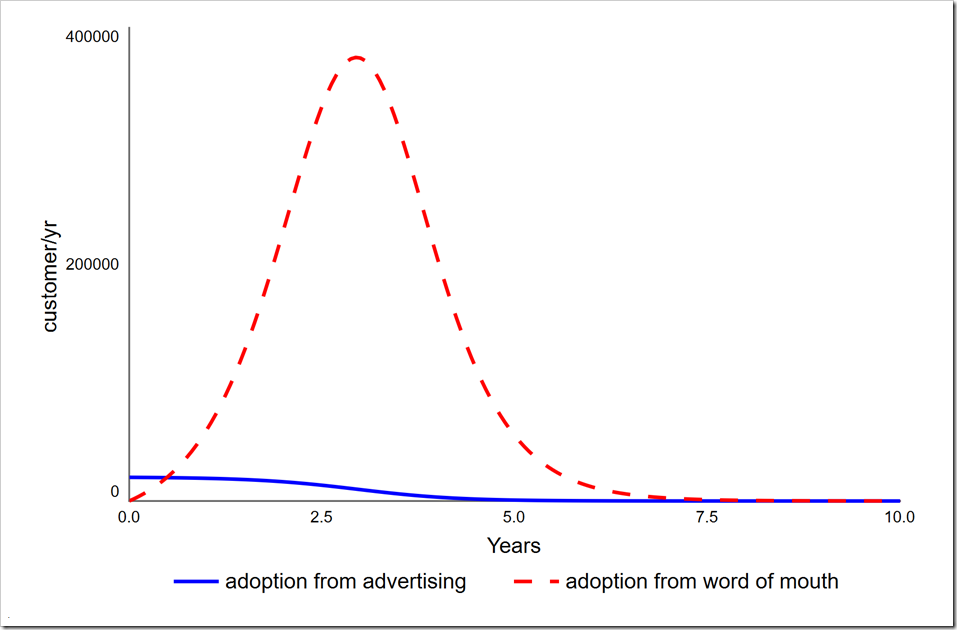
The behavior of this model is shown below. Note it is not different in character from the SIR model or the simple population model.

image Read more…

, , ,

Humanities Major Attempts Dynamic Modeling and Survives!

January 15th, 2010

Joanne Egner Training

This post is written by Rolf Olsen, a participant in our Introduction to Dynamic Modeling with iThink and STELLA workshop held last month in Colorado Springs.  We thought Rolf’s perspective would offer insights for those of you who are new to Systems Thinking or curious about applying dynamic modeling to real-world issues.

Rolf Olsen, Workshop Participant

I was very excited about a last-minute chance to attend the introductory iThink/STELLA workshop, but to be honest, on the flight to Colorado Springs, I started to become apprehensive.  Who was I trying to kid?  Sure, I’d heard the terms “stock” and “flow” and I understood their roles as the nouns and verbs of the software.  I’d even read a few chapters in Barry Richmond’s Introduction to Systems Thinking.  But the first time I started up the software and stared at that blank workspace, I had no clue where to begin!  Adding to my anguish, I was quite certain there would be others there who were much smarter than me and really knew what they were doing.

In college I spent most of my time and energy studying English and French, language, literature, cinema, art history, and so forth. I managed to avoid all higher math like the plague (although I did reasonably well in basic statistics).  My engineer father often reminded me that my degree in Humanities prepared me for almost nothing.  After college, I stumbled into a career in marketing – quite fertile territory for exploring system dynamics and modeling, as it turns out.  I spent a few formative years in an ad agency and at a regional banking system, before finding my stride marketing and managing nonprofit arts and culture organizations. Today I work in marketing and communication in a large academic medical center.

For years I’ve used spreadsheets to model various ‘what if’ scenarios.  In the arts, I used spreadsheets to create budgets and set ticket prices, always seeking ways to better predict revenue from ticket sales at different prices, for different types of performances (e.g., modern dance, string quartet, jazz ensemble), or on different days of the week.

Preparing for the iThink/STELLA workshop, I decided I’d like to try to model demand in a market area for laser vision correction surgery, popularly known as LASIK or PRK.  That seemed simple enough.  I might be able to bluff my way through this workshop after all!

Read more…

Top Blog Posts of 2009

December 18th, 2009

Joanne Egner News & Announcements

isee_blog_icon_128In 2009, the isee systems blog, “Making Connections” was created as a forum for sharing ideas and experiences with the Systems Thinking community. Blog topics cover subjects ranging from a systems perspective of current news events to modeling tips for advanced STELLA and iThink users.

As the first anniversary of the isee Blog approaches, we thought it would be interesting for folks to see the list of our most popular blog posts.


Top Ten Posts of 2009

  1. Modeling H1N1 Flu Outbreak
  2. Modeling Customers Switching Between Brands
  3. Modeling a Watershed with Arrays
  4. Matrix Arithmetic
  5. Spatial Modeling with isee Spatial Map
  6. “Thinking in Systems” book inspires online course
  7. Physics Textbook 2.0
  8. Insight-based Model Investigates the Housing Crisis
  9. Building a Health Care Model Hierarchically
  10. C02 in the Atmosphere Behaves Like a Bathtub

Limits to Growth

December 3rd, 2009

Karim Chichakly STELLA & iThink

This is the first of a three-part series on the Limits to Growth Archetype.  The second part can be accessed here and the third part here.

The Limits to Growth Systems Archetype, also known as Limits to Success, combines growth with an exogenous or endogenous limit.  This Systems Archetype was formally identified in Appendix 2 of The Fifth Discipline by Peter Senge (1990), but made its first prominent appearance in World Dynamics by Jay Forrester (1971) and then The Limits to Growth by Meadows, Meadows, Randers, and Behrens (1972).  The Causal Loop Diagram (CLD) is shown below.

image

Real growth processes have inherent limits to growth.  Identifying these limits can help avoid problems in the future, whether the problem is overpopulation, increasing demand for a product that cannot be met, or growing a business in a mature market.  When growth is desired, but limited, it is always better to find ways to increase the limit before pushing for more growth.  Excessive growth in the face of a limit often leads to collapse.  Driving the system to the point of collapse can erode the ability to continue after the collapse, for example, by reducing the production capability of a piece of farmland or destroying the reputation of a company.

Classic examples of limits to growth include:

  • The collapse of the deer population on the Kaibab plateau and on St. Matthew Island due to overpopulation and the attendant overgrazing of their habitat
  • The overshoot and collapse of the human population on Easter Island
  • Overgrazing in the Sahel region of Africa by cattle herders
  • Overfishing of the oceans by fishermen
  • The collapse of People Express due to sharp customer growth combined with slow personnel growth
  • The sharp exodus of America Online subscribers after an intense marketing campaign increased the number of subscribers far beyond their capacity
  • The contraction of the world economy in 2008 due to limiting oil supplies
  • The productivity of staff deteriorating as a company grows, due to increased interactions and reporting overhead
  • Business growth limited by the size of the potential market
  • Yeast cells in the fermentation process, who suffer from both the loss of exogenously supplied sugar and the increase of endogenously produced pollution

Read more…

, , , ,

Incorporating STELLA into STEM Education

November 18th, 2009

Joanne Egner Education

MODSIM 2009Jeremy and I recently attended the MODSIM 2009 Conference in Virginia Beach where we facilitated a pre-conference workshop with the help of Mark Clemente, a local high school science teacher.

We’ve been working with Mark over the past year to incorporate dynamic modeling and computer-based simulation into the STEM curriculum at Ocean Lakes High School in Virginia Beach.  Ocean Lakes is serving as a demonstration school for a broader initiative in Virginia to use Modeling and Simulation (MODSIM) as an engine for 21st Century workforce development.

One of our goals for the pre-conference workshop was to provide participants with STELLA models and lessons that they could use immediately in their classrooms.  To attain this we put together a packet of sample lessons that would cover the spectrum of STEM education courses—Science, Technology, Engineering and Mathematics.

Science: Exploring an H1N1 flu outbreak model

Educators at all levels have found that physical activities or games can often be a good way to introduce students to STELLA models. Activities can be a lot of fun and provide a physical model for kids to make the connection with the more abstract computer-based simulation.

In our workshop, we decided to introduce a STELLA model of the H1N1 flu outbreak by first engaging the class in a simple exercise that demonstrates the spread of infectious disease using cups of water.  Each student was given a cup of water and a pipette.  One cup of water however, was contaminated with sodium hydroxide.   We then began the process of walking around and dropping a pipette filled with liquid from our own cup into the cups of fellow students.  At the end of several rounds, Mark (our teacher) put a drop of phenolphthalein solution into everyone’s cup.  If the liquid turned pink, we were infected.

With a new understanding of how quickly infection can spread, the class was ready to be introduced to a STELLA model of the H1N1 flu outbreak.  The core structure of the model is based on the same model that epidemiologists use to track a population through the various stages of infection including Susceptible, Exposed, Infected and Recovered (SEIR).

The simulation provided several controls for students to experiment with different policy options for controlling the spread of the virus.   Along with the model, we provided a sample lesson with a set of questions to help guide students through their exploration.  To download the H1N1 model and sample lesson, click here.

Technology: Inquiry-based learning with STELLA simulations

It was fascinating to watch how each student in our workshop experimented differently with the model and began asking their own set of questions.  STELLA simulations and computer technology provide the perfect platform for students to learn using an inquiry-based approach.  Rather than being told how something works, students can discover for themselves by exploring “what-if” scenarios and finding out what happens. For teachers, this can mean shifting from a traditional teacher role to that of a facilitator or coach, guiding students in their inquiry without knowing in advance the path they’ll choose.

Engineering/Physics: The Pendulum Story

pendulumAnother STELLA model that we introduced to workshop participants was one that Mark and I modified for the Physics Flexbook project earlier this year.  The original version was developed by Diana Fisher in her book Lessons in Mathematics: A Dynamic Approach. The model provides a practice field for learning how the variables of simple harmonic motion are related.  Controls in the simulation allow you to explore what effect, if any, string length, initial displacement, and pendulum ball mass have on the amplitude, period, and frequency of the pendulum’s motion.  To download the pendulum model and sample lesson, click here.

Mathematics: Algebra Word Problems

You may remember from your own experience in math class that word problems typically give students a lot of trouble!  It is especially difficult to understand what is important in the problem and how to translate words into mathematical equations.  STELLA can help by allowing students to create a visual representation of the problem and making it easier to understand the symbolic representation.

For the workshop, we used the following word problem as an example of a typical Algebra I assignment:

Imagine your class is going to try to raise $400 by making school T-shirts. There is a $150 set-up charge for the T-shirt design that you have designed. Once the design is set, it costs $4 for each T-shirt. You feel it is possible to charge $10 for each T-shirt. How many T-shirts do you have to sell before you break even, i.e., make enough money to cover your costs?

Together we created a STELLA model that provided a visual representation of the word problem and gave everyone some hands-on experience building models from scratch.  It also inspired some participants to think about ways they could expand or change the model to answer additional questions that weren’t part of their immediate assignment. 

Tshirt

To download the T-shirt model and lesson, click here.

We’d love to expand our library of STELLA lessons and models so that we can share them with teachers.  If you’ve got any ideas of things you’d like to try in your classroom, please feel free to contact us – we’re here to help!

, , , , , , , , ,